Microsoft Word: Edit Documents
- 4.8
- Rating
- 1.00B
- Installs
- Free
- Price
 Analysis by App-foxy
I use Microsoft Word: Edit Documents when I need a document that must look dependable beyond my own screen. A quick note can live in a simpler editor, but a résumé, school assignment, meeting brief, application letter, or shared report often needs more control over formatting and language. This is where Microsoft Word still feels familiar: it gives me a serious writing workspace without charging for the basic app itself.
It is a productivity app from Microsoft Corporation, available free of charge, with optional in-app purchases ranging from $0.99 to $199.99 per item. Its Everyone age rating makes it approachable for a broad audience, although the amount of functionality you can use may depend on the account and plan connected to your Microsoft experience. I would not treat “free” as meaning every advanced capability is automatically included.
The app has been available since January 6, 2015, and its reach is enormous: it has passed one billion installs and holds a 4.8 average from roughly sixteen million ratings. Those figures do not replace personal testing, but they do explain why Word is often the first document tool people recognize when someone sends them a file.
In-Depth Coverage of Microsoft Word: Edit Documents
How Microsoft Word handles real documents, trust, and control
I use a document editor differently when the work carries personal details or will be passed to other people, so this section looks at the choices I make around editing, trust, and control. Familiar tools can make a task feel routine, but I still treat account context, document versions, and the final sharing step as decisions worth checking. That practical caution leads naturally to how the app behaves during demanding, real-world editing.
A familiar workspace that rewards deliberate writing
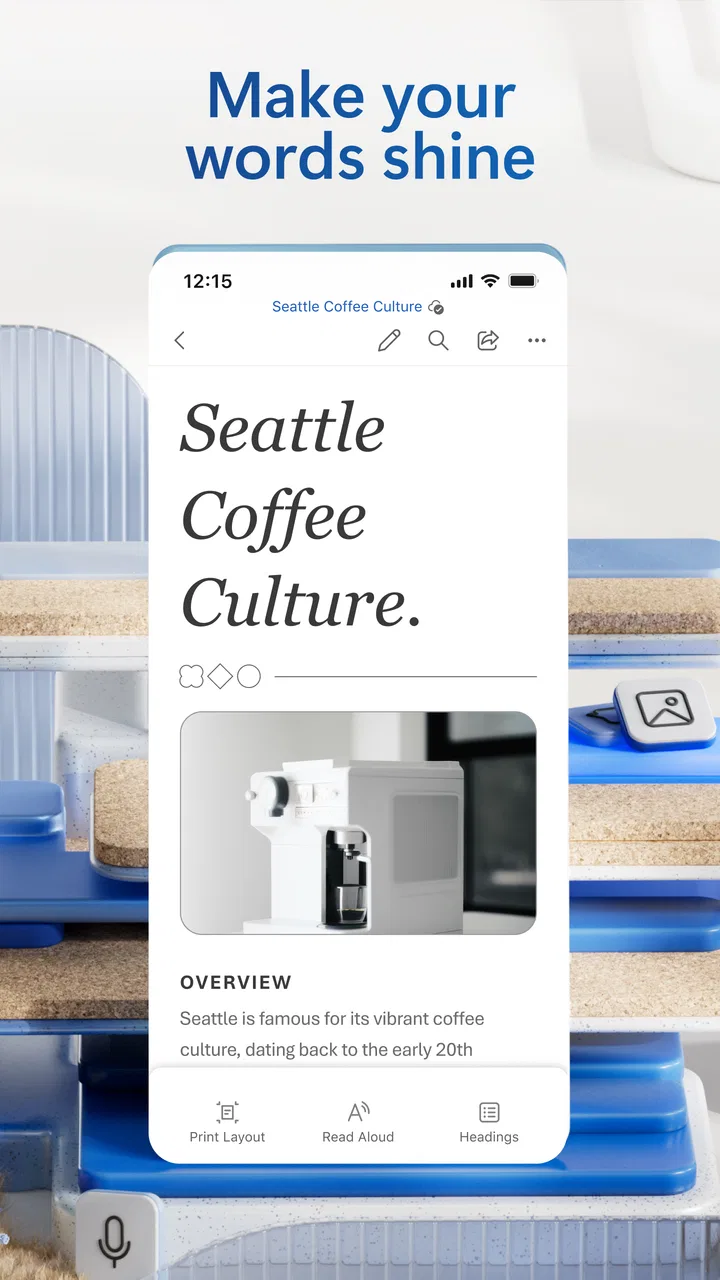
My first impression is that Word is built around documents rather than quick snippets. That sounds obvious, but it changes how I work. I am encouraged to think about headings, spacing, page breaks, lists, and the final appearance instead of treating the screen like a temporary text box. The interface can feel heavier than a minimalist notes app, yet that extra structure becomes useful as soon as a document grows beyond a few paragraphs.
The strongest everyday workflow is drafting first and polishing in a second pass. I can write the content without constantly adjusting every visual detail, then return to clean up headings, alignment, emphasis, and paragraph spacing. This separation prevents a common problem in mobile writing: spending more time making one sentence look attractive than improving the document as a whole.
Word is particularly useful when I need to continue work across different situations. I might begin an outline on a phone, revise it on a larger screen, and open it again when someone asks for a last-minute correction. That flexibility matters more to me than decorative templates. The main benefit is not that the app makes writing effortless; it is that it gives a familiar place to keep a document moving.
Formatting tools are most valuable when they prevent rework
On a small screen, manual formatting can become frustrating. Selecting a phrase precisely is slower than on a computer, and adjusting several paragraphs one by one is easy to get wrong. My practical advice is to establish a simple structure early: use consistent heading treatment, keep body text visually calm, and avoid trying to solve the entire layout while the ideas are still changing.
That approach becomes especially helpful for a résumé or cover letter. I would rather make the document easy to scan than fill it with elaborate visual effects. Word gives me enough control to create clear sections, align information, and maintain a professional appearance, but the responsibility remains mine. A polished tool cannot rescue a crowded page or a vague explanation.
For longer work, I use formatting as navigation rather than decoration. Distinct headings help me locate sections quickly, while consistent lists make instructions easier to follow. This is one of the less obvious strengths of a full document editor on mobile: even when I am away from a desk, I can make structural improvements that would otherwise wait until later.
Grammar assistance helps, but I do not let it become the editor
Word’s writing assistance is useful during revision because it draws attention to grammar and wording issues that are easy to miss after staring at the same paragraph. I treat suggestions as prompts, not commands. A correction can be technically neat while changing my intended tone, especially in a personal statement, technical explanation, or message written in a particular voice.
My preferred method is to read the entire sentence aloud before accepting a suggestion. If the sentence sounds unnatural, I rewrite it myself. If the tool flags a small mechanical mistake without changing the meaning, accepting the correction can save time. This keeps the app in a supporting role instead of allowing automated advice to flatten every document into the same style.
That distinction matters for multilingual writers and anyone using specialized vocabulary. Names, product terms, abbreviations, and industry language may look unusual to a general grammar checker. I would always review a suggested change in context, particularly in legal, academic, medical, or technical material where a small wording change can carry a large meaning.
Trust begins with knowing what kind of work belongs here
Because Word is so widely recognized, people sometimes choose it automatically for every writing task. I do not think that is always wise. A short grocery list is faster in a notes app. A live brainstorming session may feel better in a collaborative whiteboard. A plain-text editor can be preferable when I want minimal distraction or very lightweight files.
Word earns its place when presentation, revision, and compatibility with familiar document workflows matter. If my priority is only speed, its broader toolset can feel like unnecessary friction. If I need a document that other people expect to open, comment on, edit, or print, the extra structure becomes a practical advantage.
You May Also Like

 AliExpress - Shopping App
AliExpress Makes Global Shopping Feel Personal, but Shoppers Bear the Risk
AliExpress turns a global marketplace into a pocket-sized discovery engine. Its reach is useful, its shopping loop compelling, and its trade-offs easy to miss.

 Lords Mobile: Kingdom Wars
Lords Mobile Is a Kingdom-Building Routine, Not a Quick Match
A case-by-case verdict on the building, battles, device demands, and social commitments that make Lords Mobile rewarding for some players and exhausting for others.

 PDF Scanner app - TapScanner
TapScanner Makes Paperwork Easier to Capture, Check, and Share
TapScanner makes scanning with a phone feel less like a rescue operation and more like a dependable step in getting work done. Its capture tools are useful, though not flawless.

 Block Blast!
Block Blast! Shows How Much a Puzzle Game Can Leave Out
A quiet grid game shows why puzzle players increasingly value instant clarity, repeatable skill and low-pressure play—and where the genre still needs to catch up.

 Family Space
Family Space Review: A Shared Routine That Makes Family Life Easier
A parenting app earns its place not by adding more noise, but by making everyday coordination easier. Family Space gets that balance mostly right.

 1Weather Forecasts & Radar
1Weather Forecasts & Radar Makes the Daily Check Worthwhile
A good forecast does more than predict rain. This week's pick turns changing conditions into a clear, practical reason to check before you step outside.
More From Our News Desk
View All News


Account choices deserve attention before sensitive work
When I use a document app for personal writing, I distinguish between the document itself and the account environment around it. Signing in, saving work, sharing it, and using connected services are choices that deserve a moment of attention, especially when the document contains private information. I do not assume that convenience and privacy are identical simply because the app is familiar.
Before starting a sensitive document, I check which account I am using and whether I am working in a personal or organizational context. That small habit can prevent an embarrassing mistake, such as editing the wrong copy or sharing from an account that was not intended for the recipient. The app is most trustworthy when I remain aware of those boundaries instead of treating every save and share action as automatic.
I also avoid placing unnecessary personal details into a draft. If I am preparing a résumé, I can work with only the information needed for the current version and add more precise details near the end. For a school or workplace document, I review names, contact information, and attachments before sending anything. These are user decisions rather than magic protections, but they make a real difference.
Sharing is powerful, so I slow down at the final step
Document sharing is one of the moments where I become most cautious. A file may contain comments, older wording, private notes, or identifying details that are not obvious from the opening page. Before I send a document, I read it from the recipient’s point of view and remove anything that was meant only for my own drafting process.
A realistic example is a job application prepared on a phone during a commute. I may revise the résumé, adjust a paragraph, and send it quickly because a deadline is close. My safer routine is to pause, check the recipient, confirm the final document, and inspect the wording once more. That extra minute is more valuable than rushing because the app makes distribution convenient.
I use a similar check for group projects. If several people have contributed, I identify which version is authoritative before making changes. Otherwise, a well-formatted document can still create confusion when multiple copies circulate. Word helps me edit the content, but it cannot decide which team member should own the final version or whether everyone should see every comment.
What I can control, and what still requires judgment
The useful kind of control here is practical: I choose what to write, what to revise, which parts to format, and when a document is ready to leave my hands. I can also decide whether a particular task deserves a full Word document or a simpler tool. That freedom is easy to overlook because the app’s familiar workflow can encourage me to follow the default path.
I recommend turning off my instinct to accept every suggestion immediately. I review changes in batches, compare the revised sentence with the original, and keep my own voice where it matters. This is a small but important form of agency. Automated assistance should reduce mechanical effort, not make decisions about the message I am trying to deliver.
I also keep a clean naming habit for important drafts. Instead of relying on vague labels such as “final” or “new,” I use a clear description that tells me what the document is for. That becomes especially helpful when I work from a phone and cannot inspect every file at a glance. It is not a flashy feature, but it reduces the chance of editing or sending the wrong version.
Where the mobile experience can slow me down
The biggest limitation is the screen. Precise layout work is simply more comfortable on a tablet or computer. On a phone, selecting a table cell, correcting a page break, or checking the relationship between several sections can take patience. I can make meaningful edits on mobile, but I would not choose it for a document that depends on exact visual balance.
Another source of friction is the difference between reading and editing. A document may look acceptable while I am focused on the words, then reveal awkward spacing or a misplaced break when viewed as a complete page. I make a habit of reviewing the whole document after substantial changes rather than trusting the last paragraph I edited.
The app can also feel excessive for people who want a distraction-free writing surface. Its familiar document conventions are a strength for formal work, but they may interrupt a simple creative flow. If I am journaling, collecting rough ideas, or writing a very short reminder, I usually prefer something lighter and faster.
Who gets the most value from it
I would recommend Word to students preparing structured assignments, professionals revising reports, applicants creating résumés, and families who need a dependable way to prepare letters or forms. It is also a sensible choice when recipients expect a conventional document and I do not want to explain a different format.
It is less suitable for someone who never needs formatting, does not want an account-centered workflow, or mainly writes private notes that should stay as simple as possible. It may also disappoint users expecting a complete desktop publishing environment on a phone. For intricate page design, a larger screen and a specialized layout tool are usually the better choice.
Compared with a basic notes app, Word offers much stronger document structure and presentation control, but it asks me to navigate more tools. Compared with a browser-based collaborative editor, its appeal is the familiar Word environment and established document format, while the best choice depends on how my group prefers to work. Compared with a plain-text editor, Word is more capable for finished documents but less elegant for distraction-free drafting.
My practical routine for safer, cleaner results
I start with the purpose of the document and the person who will read it. Then I draft without obsessing over minor formatting, apply a consistent structure, and perform a separate language review. After that, I inspect the document as a whole, paying attention to headings, lists, spacing, names, and any information that should not be shared.
For sensitive material, I use the smallest amount of personal information needed while drafting and confirm the active account before saving or sharing. I also avoid treating a grammar suggestion as an authority. These habits make the app more useful because they keep responsibility with me while allowing Word to handle repetitive editing work.
One further tip is to prepare a reusable structure for recurring documents, such as meeting notes or application letters, but rewrite the substance each time. A template can save effort, yet copying old details without checking them is risky. I treat any previous document as a starting point, not as proof that its names, dates, or claims still belong in the new version.
A cautious verdict for everyday productivity
Microsoft Word: Edit Documents remains a strong recommendation when I need a recognized, flexible document editor rather than a simple text box. Its free entry point, broad familiarity, formatting tools, and writing assistance make it useful for work that needs to look considered. The huge user base and 4.8 average from around sixteen million ratings show how established it is, while more than one billion installs underline its reach.
My recommendation comes with conditions. I would not choose it for every note, and I would not assume that automated grammar help understands my intent. I would pay attention to account context, review sensitive content before sharing, and use a larger screen when layout precision matters. Optional purchases can also change what feels available, so I would check the choices presented in my own setup before planning around an advanced workflow.
For someone who wants to write, revise, and deliver conventional documents with a familiar Microsoft experience, this app is a dependable starting point. For someone seeking the simplest possible writing space or a tool designed specifically for complex visual publishing, another option may fit better. In my experience, Word works best when I use its structure deliberately and keep the final decisions—especially about privacy, tone, and sharing—in my own hands.
FAQs for Microsoft Word: Edit Documents
01What features does Microsoft Word: Edit Documents offer on mobile devices?
Microsoft Word: Edit Documents on mobile offers a robust set of features similar to its desktop counterpart. Users can create, edit, and format documents easily. It supports templates, collaboration tools, and cloud integration via OneDrive. Additionally, it offers features like track changes, comments, and real-time co-authoring, making it ideal for both personal and professional use.
02Is Microsoft Word: Edit Documents free to use on Android and iOS?
Microsoft Word: Edit Documents is available as a free download on both Android and iOS. However, certain premium features require a Microsoft 365 subscription. Free users can still create and edit documents, but advanced features like advanced formatting and collaboration tools might be restricted without a subscription.
03Does Microsoft Word: Edit Documents support offline editing?
Yes, Microsoft Word: Edit Documents supports offline editing. Users can work on documents without an internet connection. Once reconnected to the internet, the app automatically syncs changes to the cloud, ensuring all edits are saved and accessible across devices linked to the same account.
04How does Microsoft Word: Edit Documents handle file compatibility?
Microsoft Word: Edit Documents ensures excellent file compatibility with various formats such as .docx, .pdf, and .txt. This makes it easy to open and edit documents received from different sources. The app also allows users to save files in different formats, ensuring seamless sharing and collaboration across different platforms.
05What collaborative features are available in Microsoft Word: Edit Documents?
Microsoft Word: Edit Documents offers robust collaborative features, allowing multiple users to work on a document simultaneously. It supports track changes, comments, and real-time co-authoring. Users can also share documents directly from the app, making it easy to collaborate with colleagues or friends, enhancing productivity and efficiency.
Pros
- User-friendly interface and design.
- Comprehensive formatting options.
- Seamless cloud integration.
- Cross-platform compatibility.
- Regular updates and improvements.
Cons
- Requires a Microsoft account to use.
- Some features need a subscription.
- Large file size for mobile devices.
- Occasional sync issues with cloud.
- Limited offline functionality.

Microsoft Word: Edit Documents
Gallery